CAL: Secret Photo Vault
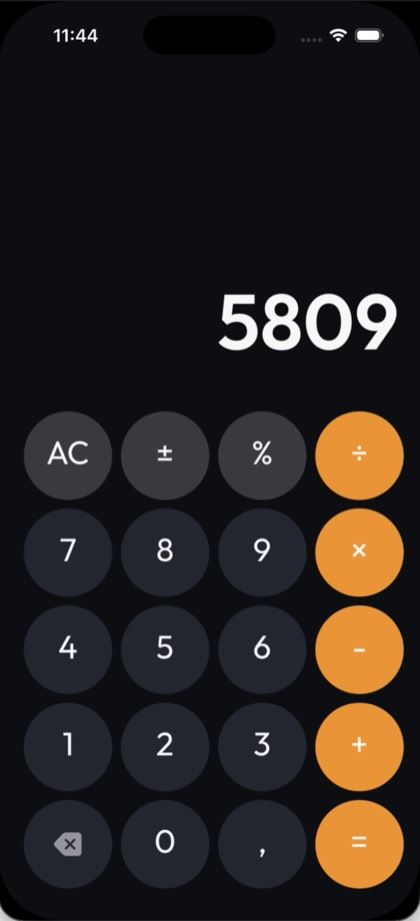
To hide photos on iPhone so nobody knows, use CAL: it looks and works like a normal
calculator; type your PIN and press = to open an encrypted vault. Inside you can keep
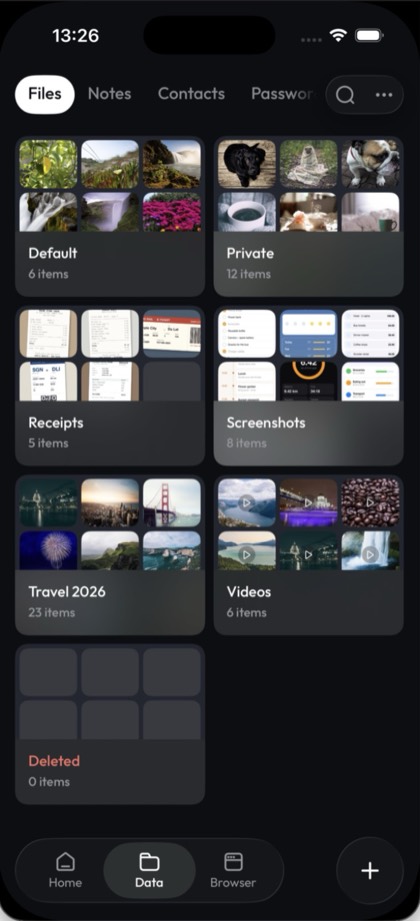
photos, videos, notes, passwords, contacts and files. CAL is free to download and needs no
account.
How it works
CAL hides your vault behind a calculator that really calculates. Type your PIN on the keypad and
press = to open the vault; any other sum just gives you the answer. Turn the disguise
on once in Profile → Advanced Protection → Facedown Lock by choosing Calculator, and CAL opens as a
calculator from then on. Without it, CAL opens on a plain passcode screen.
Decoy Vault
A Decoy Vault is a second vault that opens with a fake passcode and shows only harmless content. If someone forces you to unlock CAL, enter the fake passcode instead of your real one. It opens a separate space with its own photos, files, contacts and notes, and your real vault stays hidden. You can create more than one fake passcode, and decoy content is never included in iCloud backups.
What you can hide
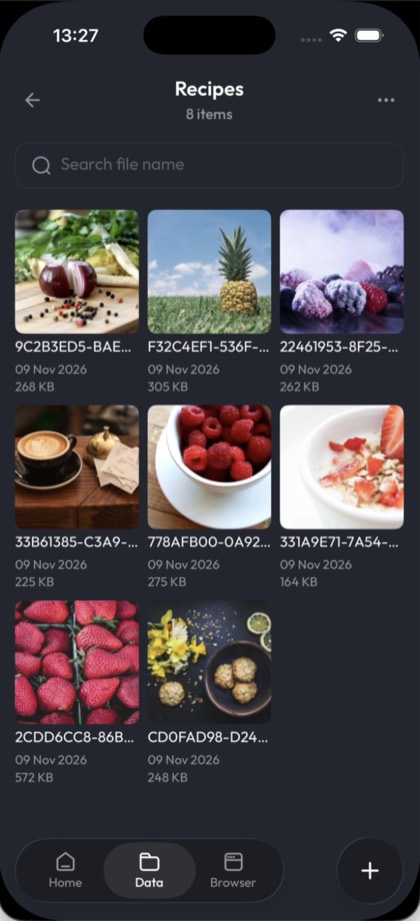
CAL can hide photos, videos, notes, passwords, contacts and files of any kind. Import photos and videos from your library, or take them with CAL's own camera straight into the vault. Sort files into private folders, and keep passwords, contacts and notes in their own sections.
Private browser
CAL has its own private browser, and what you save from it goes into the vault, never into Photos. Long-press an image to save it to the vault; files a website offers as downloads go into a Downloads folder in the vault. You can also capture the visible page or the whole page as an image. With Pro, the built-in ad blocker stops ad and tracker requests on your device.
Extra protection
CAL can close the vault the moment someone comes near. Facedown Lock closes it as soon as you put the phone face down, showing either the lock screen or the calculator. With Panic Button on, shake the phone and CAL locks the vault and switches to the calculator. You can also change the app icon to a disguise such as Calculator, Calendar, Clock, Weather or Notes.
Backup
Backup is optional: CAL can keep an encrypted copy of your vault in your own iCloud. With iCloud Backup & Sync on (a Pro feature), files are encrypted on your iPhone before upload, so neither Apple nor we can read them. Restoring is free, even if your subscription ends. At setup CAL gives you a Recovery Code to reset a forgotten PIN, and you never need an account or email.
FAQ
How do I hide photos on my iPhone without anyone knowing?
Install CAL: Secret Photo Vault, import the photos into its encrypted vault, then delete the originals from the Photos app and its Recently Deleted album. Turn on the calculator disguise and CAL opens as a working calculator; the vault only appears when you type your PIN and press =. For extra cover, give the app a disguise icon and set up a Decoy Vault.
Does CAL look like a calculator on my home screen?
It can. In Profile → Advanced Protection → Change App Icon, pick the Calculator icon, or another disguise such as Calendar, Clock or Weather. Turn on the calculator disguise too, and the app itself opens as a calculator that does real sums.
What happens if someone forces me to unlock it?
Give them your fake passcode. With a Decoy Vault set up, that passcode opens a separate vault holding only the harmless content you put there, and your real vault stays hidden.
Is CAL free?
Yes, CAL is free to download and use, with limits on how much you can store. An optional Pro subscription, or a one-time lifetime purchase, removes the limits and adds the private browser's ad blocker and encrypted iCloud Backup & Sync. Purchases are handled by Apple.
What if I forget my PIN?
Use your Recovery Code. When you set up CAL, it gives you a 16-character Recovery Code to save somewhere safe. After five wrong attempts on CAL's passcode screen, tap Recover Access, enter the code and choose a new PIN; your files are kept. The check happens on your iPhone, with no email or internet needed. If you lose both your PIN and your Recovery Code, nobody can open the vault, including us.
Are my photos encrypted, and can anyone else see them?
Yes, they are encrypted. Photos and videos are encrypted on your iPhone with AES-256-GCM, using a key kept in the iOS Keychain. CAL has no server that receives your files, so we cannot see them. If you turn on iCloud Backup & Sync, files are encrypted before they leave the phone, so Apple only stores unreadable data. Your PIN is never stored, only a one-way hash of it.
Does CAL need an account?
No. You never sign up, log in or give an email address to use CAL. Your vault lives on your iPhone, and if you choose to back it up, it goes to your own iCloud.