How to hide photos on iPhone (with or without the Hidden album)
iPhone has a built-in Hidden album: in the Photos app, open a photo, tap the More button and tap Hide. If you want hidden photos to live outside the Photos app, behind a PIN of their own, use a vault app such as CAL (our app).
1. The built-in Hidden album
The Hidden album is free and built into Photos. These steps are for iOS 26 and later and follow Apple's guide Delete or hide photos and videos on iPhone; older versions of iOS differ slightly.
Hide a photo or video
- Open the Photos app and open the photo or video.
- Tap the More button, then tap Hide.
To hide several at once, tap Select, tap the photos and videos, then tap the More button and Hide. Hidden photos move to the Hidden collection and no longer appear anywhere else in Photos.
How the Hidden album is locked
The Hidden and Recently Deleted collections are locked by default. They open with Face ID, Touch ID or your iPhone passcode. The setting is in Settings → Apps → Photos: Use Face ID, Use Touch ID or Use Passcode.
Hide the Hidden album from view
Go to Settings → Apps → Photos and turn off Show Hidden Album. Apple's article Hide photos and videos on your iPhone has the same steps.
2. When the Hidden album is not enough
The Hidden album is part of the Photos app, and it opens with your iPhone passcode as well as with Face ID or Touch ID. Anyone who knows your iPhone passcode can therefore open it. If you want hidden photos to live in a separate app, behind a PIN that belongs to that app, use a vault app.
3. Hide photos in CAL
- Install CAL from the App Store and create your PIN.
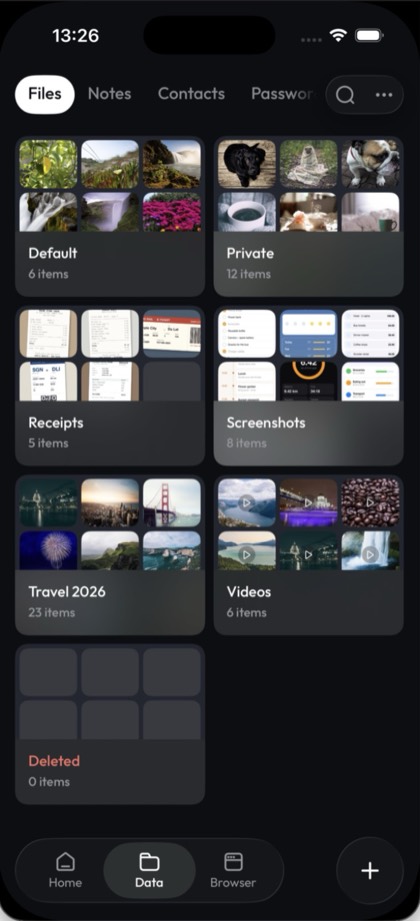
- In CAL, tap + and choose Import Gallery, then pick the photos and videos to hide. CAL copies them into its encrypted vault.
- To take new photos, tap + and choose Open Camera. Photos and videos taken in CAL go straight into the vault and are never saved to your camera roll.
- CAL does not delete anything from Photos. Delete the originals in the Photos app yourself, then delete them from Recently Deleted too (see the FAQ below).
To make CAL look like a calculator as well, turn on its calculator disguise: see calculator vault for iPhone.
FAQ
Can I hide photos without the Hidden album?
Yes. Move them into a vault app such as CAL (our app): import them or take them with CAL's camera, then delete the originals from Photos and from Recently Deleted. The photos then stay inside CAL, behind your CAL PIN.
Do hidden photos sync to iCloud Photos?
Yes. Apple says that if you use iCloud Photos, the photos you hide on one device are hidden on your other devices too.
Does CAL delete the photos from my camera roll?
No. CAL copies the photos you import and leaves the originals in Photos. To remove them, delete them in the Photos app, then go to Collections, open Recently Deleted (below Utilities), tap View Album and unlock, tap Select, choose the photos, tap the More button and tap Delete. Otherwise they stay in Recently Deleted for 30 days.